
Activate HelpiSecure on your Windows PC
Once your business is set up, the HelpiSecure desktop app installs the HelpiSecure Credential Provider on every workstation. After that, your employees can sign in to Windows with the Bluetooth device you assign them — no password required.
Why businesses choose HelpiSecure
The HelpiSecure desktop app replaces the Windows password with something your employees already carry — their paired Bluetooth beacon.
Stronger security by default
Bluetooth proximity verifies the person is at the workstation. Lost or stolen beacon tokens become useless the moment you revoke them from the dashboard.
Truly passwordless sign-in
No more reset tickets, sticky notes, or shared logins. Employees walk up to their PC, hold their beacon near it, and they're signed in — usually within seconds.
Full control from one dashboard
Manage every workstation, every employee, and every beacon token from the HelpiSecure business dashboard. Revoke access instantly.
How to activate HelpiSecure on a PC
Three short steps. The whole thing takes about five minutes per workstation.
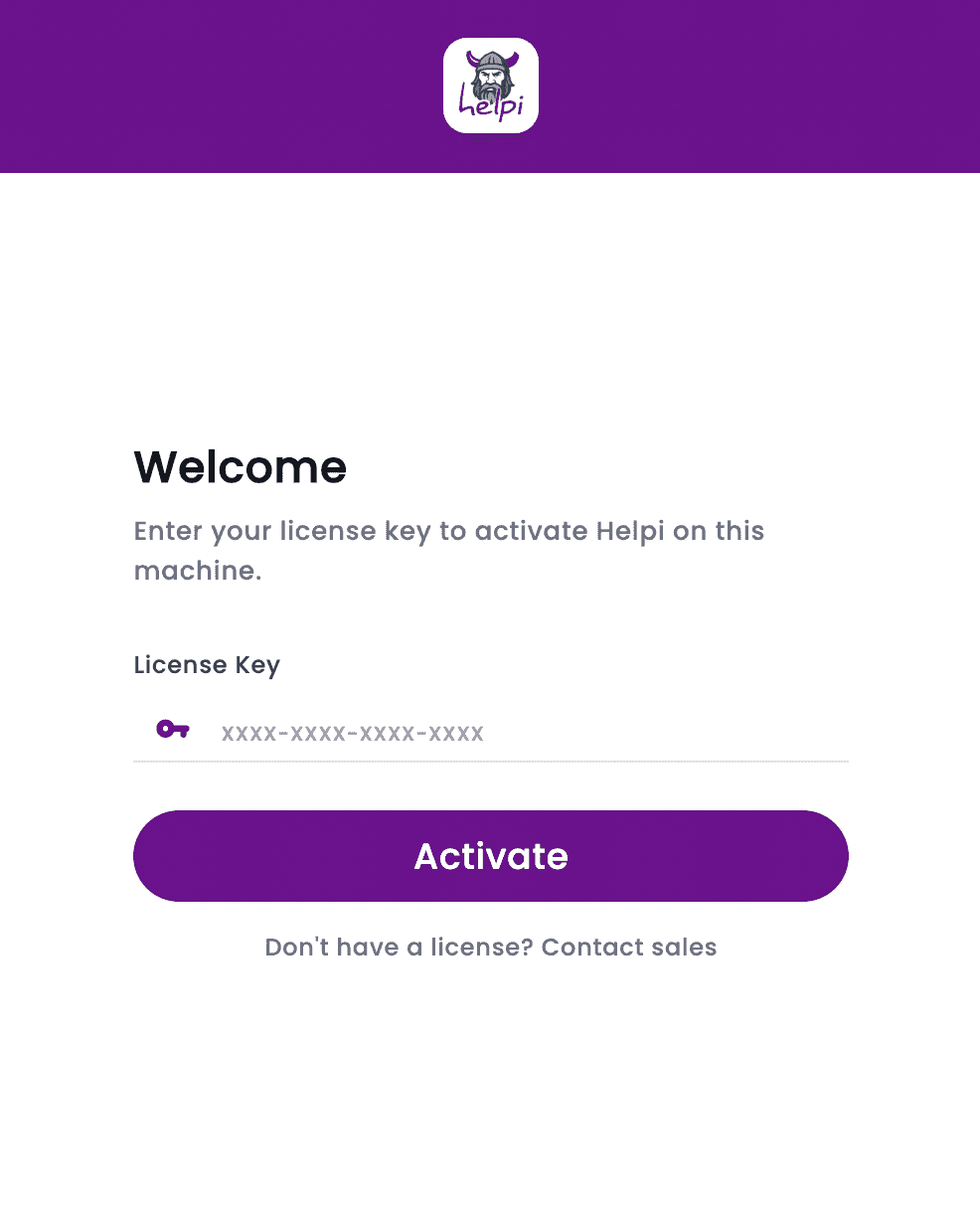
Open the app and paste your license key
When you launch HelpiSecure for the first time, you'll see a single field asking for your license key. That's the code we sent you by email when you signed up — paste it in and click Activate.
- Your license key is in the welcome email, or in your business dashboard under Setup.
- The app validates the key against your business account and gathers basic system info.
- An internet connection is required for the first activation only.
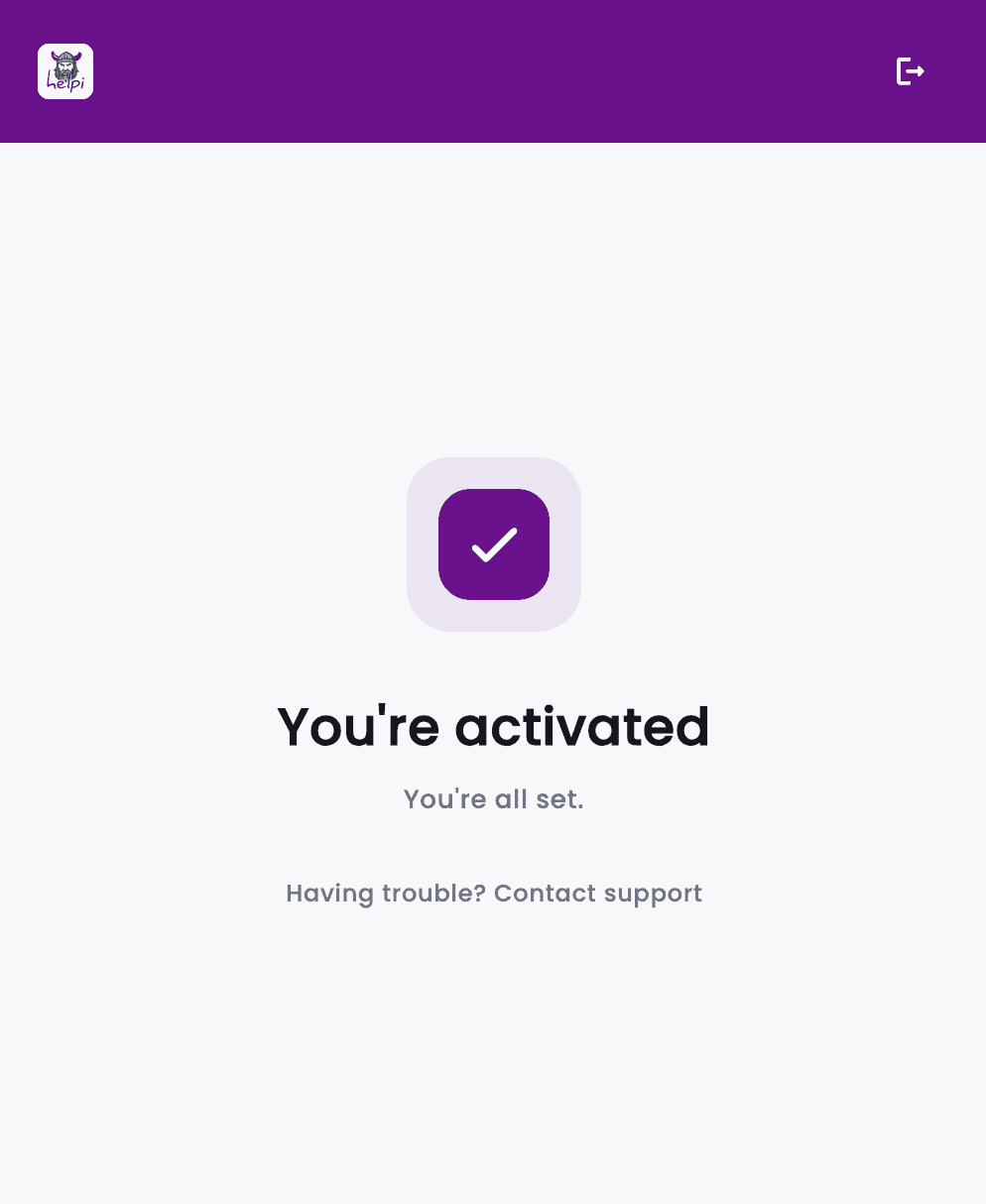
HelpiSecure installs the Credential Provider
After activation, HelpiSecure quietly registers itself as a Windows Credential Provider and starts the Bluetooth service in the background. You'll see the confirmation screen on the right — that's it for setup.
- No reboot is required — the change takes effect immediately.
- HelpiSecure runs in the system tray and only prompts you when action is needed.
- You can revoke the license at any time from the business dashboard.
Sign in to Windows with your beacon token
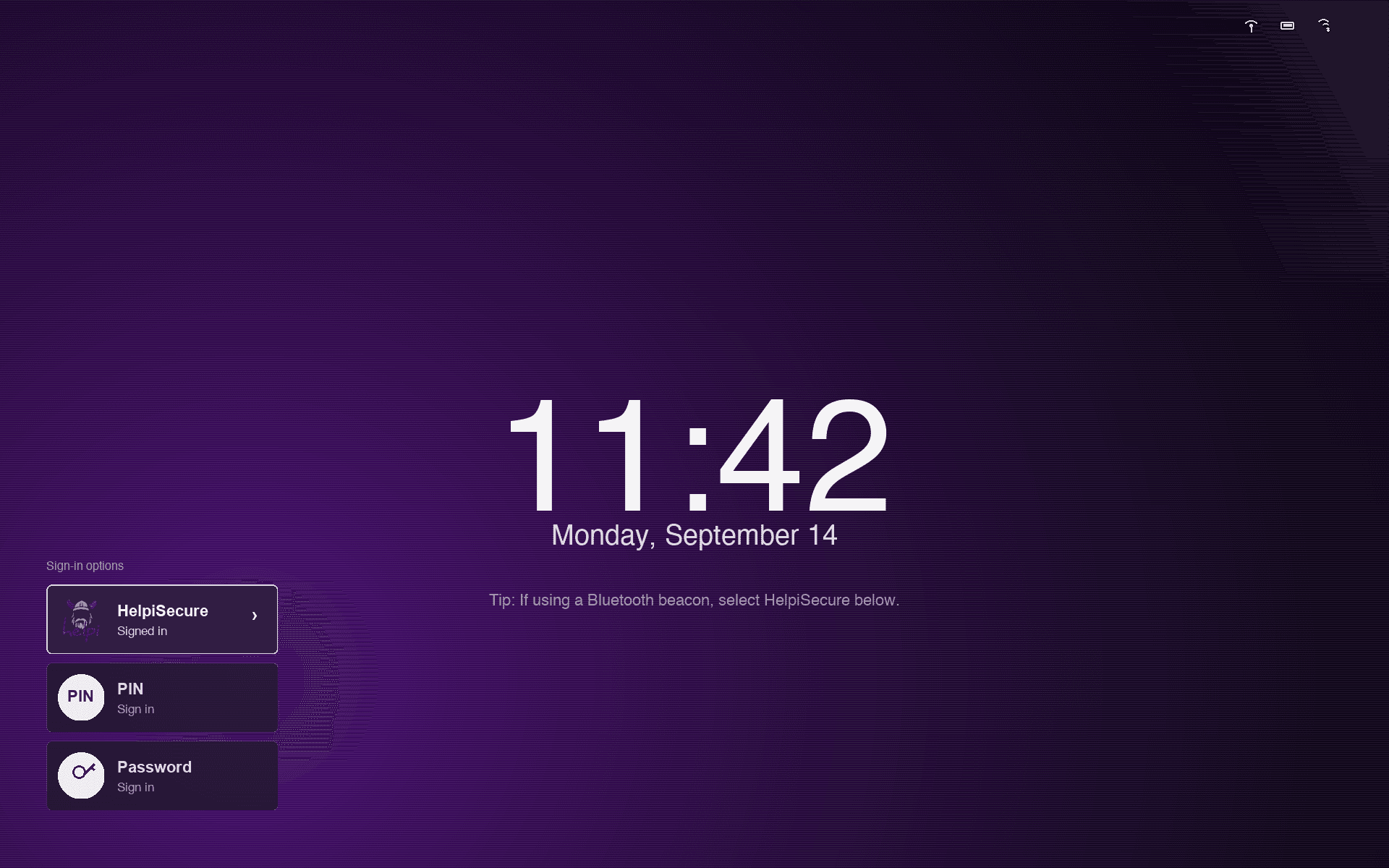
From the Windows lock screen, choose the HelpiSecure credential provider tile. Hold your paired beacon near the PC — the HelpiSecure Bluetooth service detects it, verifies the token against your business, and signs you in within a few seconds.
- HelpiSecure appears as its own tile alongside the Windows password tile — employees just pick it.
- Each employee gets their own paired beacon token — never shared, always revocable.
- Admins see every sign-in event in the activity log within seconds.
After activation
Once the HelpiSecure Credential Provider is registered, HelpiSecure appears as its own sign-in tile on the Windows lock screen — right alongside the usual password tile. Your employees pick the HelpiSecure tile, hold their paired beacon near the PC, and the HelpiSecure Bluetooth service verifies the token and signs them in — usually within a couple of seconds.
You keep full control from the business dashboard: assign beacon tokens, revoke access, view sign-in activity, and disable a workstation remotely if the device is lost or stolen.
Common questions
What business admins usually ask before rolling out HelpiSecure.
Does this replace the Windows password entirely?
Yes. Once the HelpiSecure Credential Provider is registered, employees can sign in with their paired device. The Windows password can stay as a fallback, or you can disable it from your business dashboard.
What happens if an employee loses their beacon?
Sign in to the business dashboard, revoke the lost beacon, and assign a replacement. The next sign-in attempt from the lost beacon will be rejected, even if someone tries to pair it again.
Do we need to install anything on each PC?
Yes. The HelpiSecure desktop app is installed once per workstation and registers the Credential Provider. After that, the app runs quietly in the background and you can manage it remotely.
Can employees still sign in offline?
No. HelpiSecure requires a short connection to our authentication backend to verify the paired device, which keeps the security model consistent across your fleet.
Need a hand during setup?
If the activation doesn't go smoothly, our team can walk you through it on a quick call. Most issues are resolved in under 15 minutes.