
Sign in to your Helpi workspace
The Helpi Employee app gives you one place to see every login your admin has assigned you — and lets you add your own private credentials. Sign in with your work email and you're set.
What the Employee app does
Less time hunting for logins, more time working.
Every login in one place
All the website logins your admin has set up for your role appear immediately after you sign in. No more digging through shared docs or reset emails.
Encrypted on your device
Your credentials are stored locally and synced over an encrypted channel. They never sit in plain text in a shared folder.
Add your own private credentials
Need a personal login that isn't part of your work toolkit? Add it under the same roof — only you and the app can see it.
How to use the Helpi Employee app
Four short steps from install to signed-in. The whole thing takes about a minute.
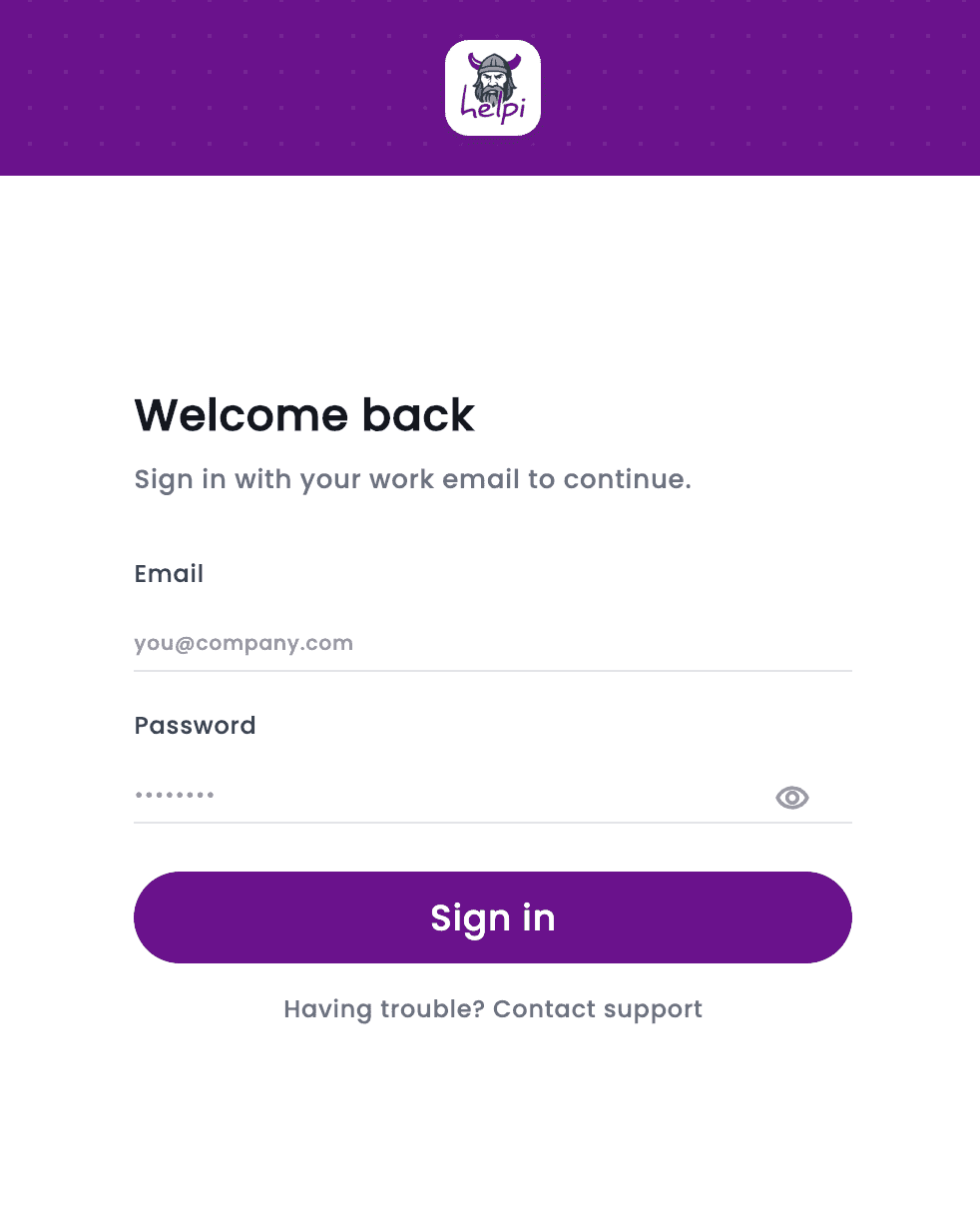
Open the app and sign in with your work email
After installing the Helpi Employee app on your work PC, launch it. You'll see a single sign-in form — enter the email and password your admin gave you, then click Sign in.
- Use the same email you use for other work tools — HelpiEmployee is linked to your business account.
- Forgot your password? Use the Contact support link below the sign-in button — your admin can reset it.
- An internet connection is required the first time you sign in on a new PC.
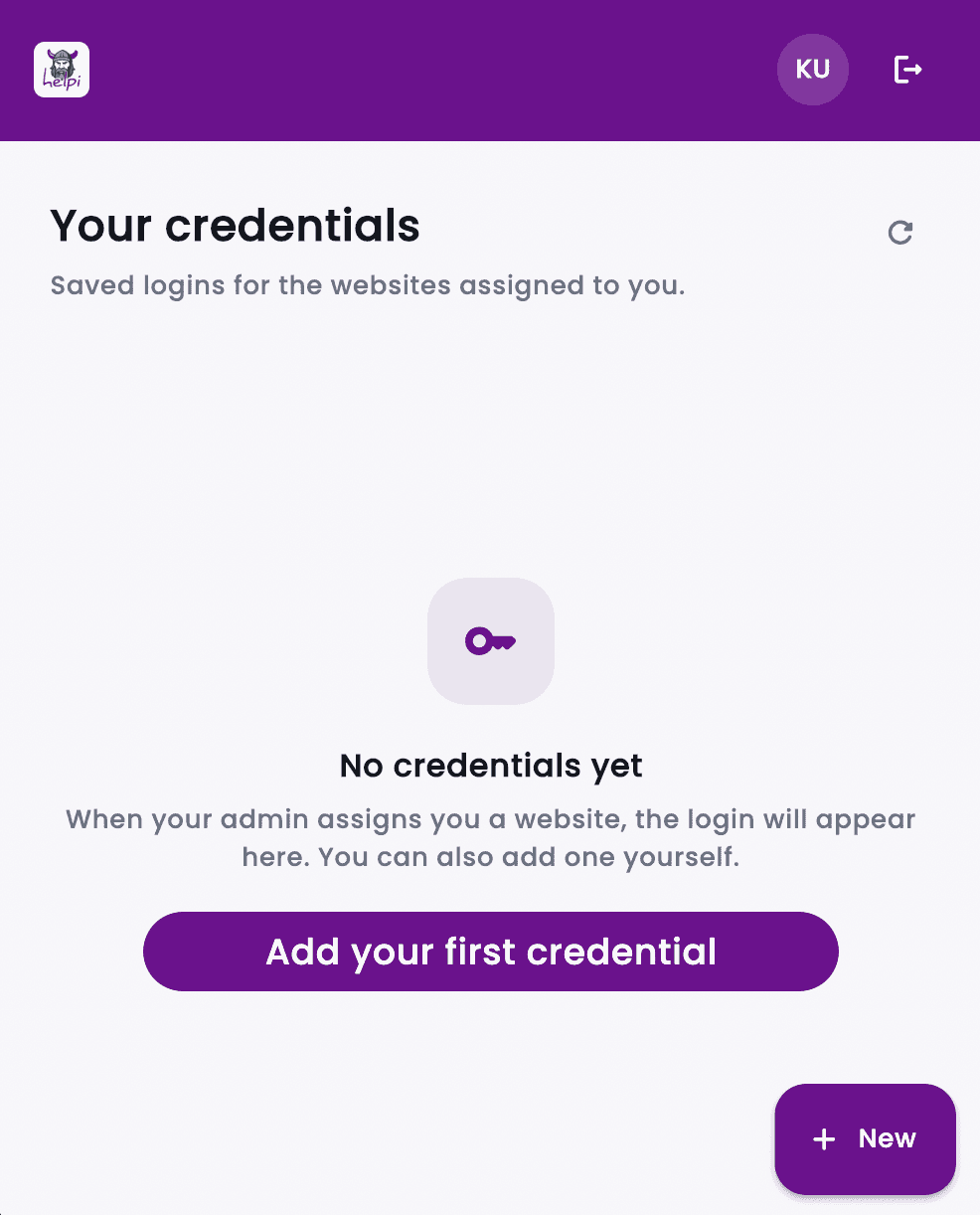
See the logins your admin has assigned you
Once you're signed in, the app shows your assigned credentials. If your admin hasn't assigned any yet, you'll see an empty state with a clear message — and you can still add your own.
- Each card shows the site name, domain, username and a one-click copy button for the password.
- If a credential is missing, ask your admin to assign it from the business dashboard.
- Updates from your admin appear automatically — no need to refresh.
Add your own private credentials
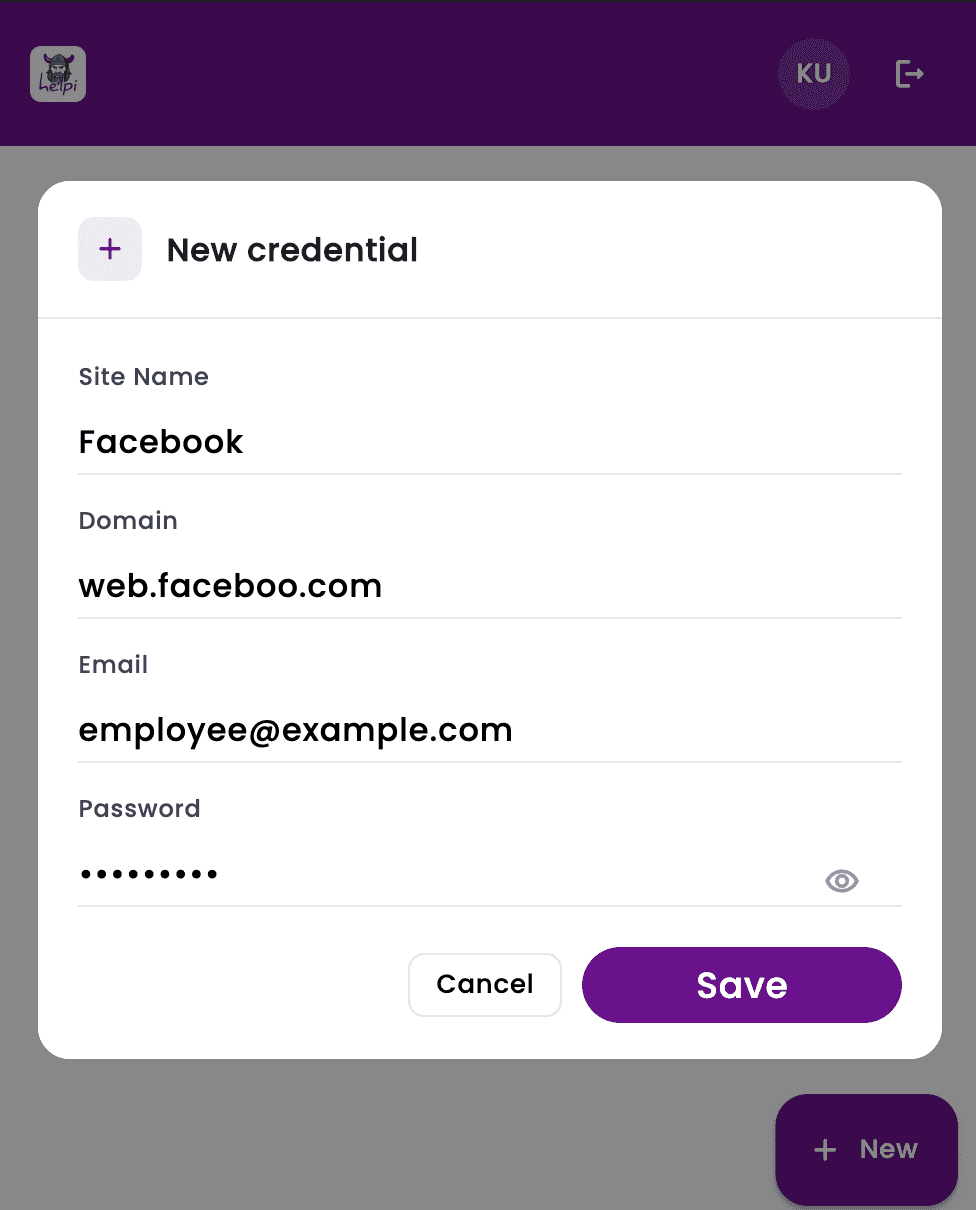
Need to save a login that isn't part of your work toolkit? Click the + New button at the bottom-right. Fill in the site name, domain, email and password, then Save.
- Use the eye icon to reveal the password while you type.
- Anything you add yourself is private to your account — admins can't see the contents.
- You can edit or delete any credential you added, anytime.
Copy a username or password with one click
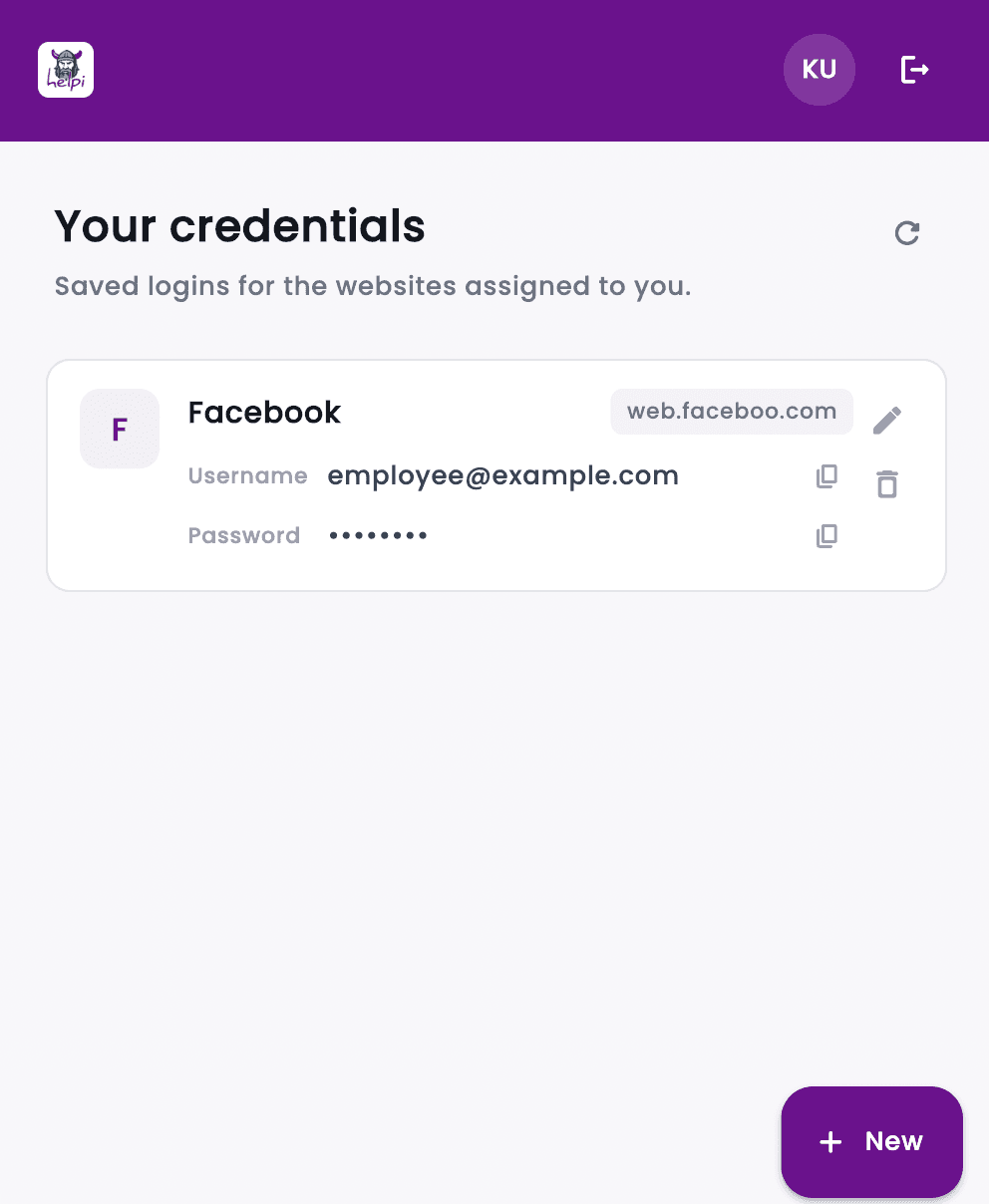
Each credential card has copy buttons next to the username and password. Click once and the value is on your clipboard, ready to paste into the website's login page.
- The clipboard clears automatically after a short timeout.
- Use the pencil icon to edit a credential and the trash icon to remove one.
- If a credential stops working, ask your admin — they can update it for everyone in your role.
Once you're signed in
Helpi Employee stays signed in until you click Sign out. New credentials your admin assigns appear automatically. Anything you add yourself stays on this device, synced to your account over an encrypted channel.
If you switch PCs or lose this one, signing in on the new device pulls down your assigned and personal credentials. Nothing lives only on the workstation.
Common questions
What employees usually ask when they first install the app.
I forgot my password. What now?
Use the Contact support link below the sign-in button, or message your admin directly. They can reset your password from the business dashboard — you'll get an email with a temporary one and a link to set a new password.
How does a credential get assigned to me?
Your admin manages credentials from the HelpiSecure business dashboard. When they assign a website login to your role or to you specifically, it appears in your Employee app automatically.
Can I add my own credentials that my admin can't see?
Yes. Anything you add with the + New button is private to your account. Admins can see that a credential exists and which site it's for, but not the username or password inside it.
Does this work with the HelpiSecure browser extension?
Yes. Credentials you see in the Employee app are the same ones the browser extension can autofill. Sign in to the extension with the same email and password and your assigned logins show up there too.
Stuck on something?
For password resets and account questions, your admin is usually the fastest path. For anything else, our support team is one click away.